# Server Settings

Any changes to the system configuration are done via Macula Console application by connecting to the Macula Enterprise server. All the Macula Recording Server servers are connected and configured via Macula Enterprise as well. The settings are immediately saved and stored in an encrypted internal database, which guarantees that your system configuration cannot be accessed without entering a valid username and password. Each Macula Recording Server has its own local database but Macula Enterprise stores the settings of all the connected Macula Recording Server entities.

This topic describes the available server settings. Some of them are unique for the central management server - Macula Enterprise - only; other settings are common for all server types.

{% hint style="danger" %}
Server database encryption is automatic, meaning that you do not need to enabled it explicitly, and is available starting from the software version 1.8.0.
{% endhint %}

In order to access the server settings via Macula Console, select *Configuration* section and then choose *Servers* components from the menu on the left. By default, the central management server entry already exists; all the discovered and manually added recording servers will appear in the same list as you add them.

<figure><img src="https://412599993-files.gitbook.io/~/files/v0/b/gitbook-x-prod.appspot.com/o/spaces%2FeNXnJx0OpvxnmpWqOBNm%2Fuploads%2FsuZjol4b1Z2yazATvM57%2Fimage.png?alt=media&#x26;token=b4464ee4-4eaa-4afd-bfe9-b83eb49ff566" alt=""><figcaption></figcaption></figure>

Double-click a server or click the *Edit* button on the upper panel to access server configuration dialog box.

#### Details

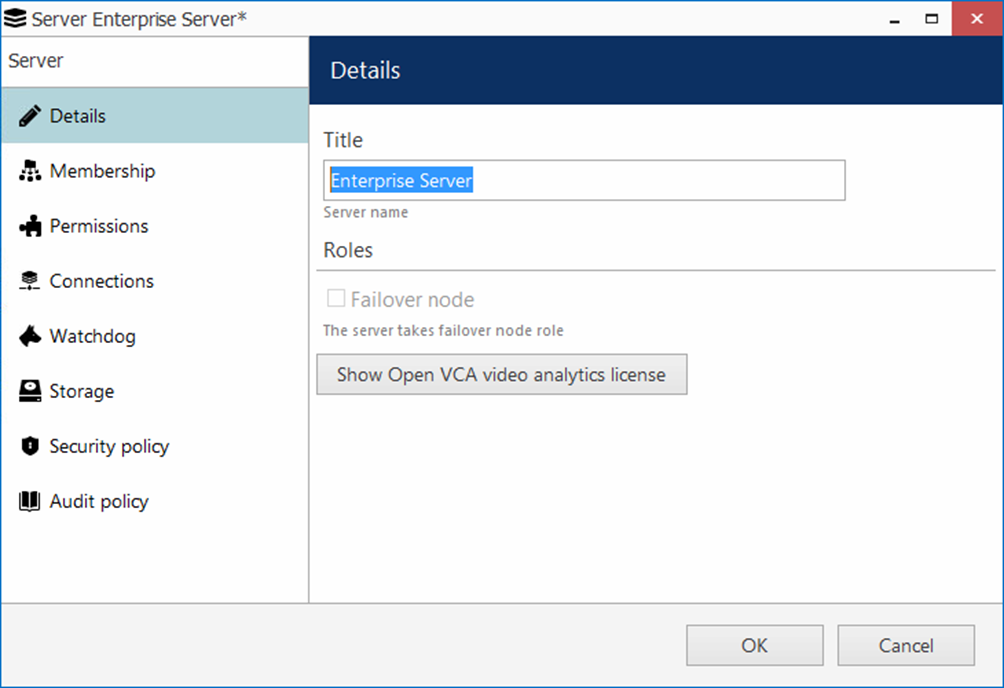
On the *Details* tab, you can change the server name: it will appear everywhere in Macula Console and in the connected Macula Monitor applications, including HTTP clients.

<figure><img src="https://412599993-files.gitbook.io/~/files/v0/b/gitbook-x-prod.appspot.com/o/spaces%2FeNXnJx0OpvxnmpWqOBNm%2Fuploads%2FR1j5hgneSaj4IrqKpPn8%2Fimage.png?alt=media&#x26;token=da51cf5d-40e8-4e8f-8383-cadde5677861" alt=""><figcaption></figcaption></figure>

Next, here you can choose the server role: regular recording (unmarked) or failover (marked). The central management server cannot act as a failover node so this option will be grayed out. However, it will be available for all Macula Recording Server type items: please see the related sections of this manual to learn about failover and Macula Recording Server setup in details.

Also, here you can apply the video analytics license to the target server. Although a 32-bit Macula Console application is required to set up VCA, you can use any bit version to enter the VCA license. For details on the VCA setup and licensing, please see the VCA documentation.

#### Connections

The *Connections* tab allows you to define the network, which will be used for accessing the Macula Enterprise server, and corresponding **ports** for Macula Monitor and Macula Streaming Server connections; the default ports are **60554** for Macula Monitor and **8080** for Macula Streaming Server (HTTP).

The HTTP port is also used for Macula Mobile, thin OS X client, Web browser connections and external services. Note that, in case you plan to access your Macula Enterprise server from the Internet, the ports must be properly forwarded on your router according to your desired topology and allowed through the firewall. Details on the port forwarding setup can be found in your router operation guide. Set 0 in the HTTP port field to disable incoming HTTP connections.

{% hint style="danger" %}
The Macula Enterprise server HTTP port must be reachable from Macula Recording Server machines if you plan to use remote upgrade.
{% endhint %}

If you wish to run Macula Monitor connections in multicast mode, you can enable it here by putting a check mark in the corresponding option. Understandably, this option is only available for the local network.

<figure><img src="https://412599993-files.gitbook.io/~/files/v0/b/gitbook-x-prod.appspot.com/o/spaces%2FeNXnJx0OpvxnmpWqOBNm%2Fuploads%2FIXpfJETVBwC08Ov3BXdG%2Fimage.png?alt=media&#x26;token=0e5694f9-1252-48a3-b5d4-a03ce142dff5" alt=""><figcaption></figcaption></figure>

Next, you can enable encryption for client-server connections and also for HTTP connections (by default, it is disabled). This setting only appears for the central management server and is applied to the whole Macula Enterprise system.

Server-client encryption setting affects all TCP traffic, i.e.:

* Macula Console connections to the Macula Enterprise server and Macula Recording Server machines
* Macula Monitor connections to the servers
* server-to-server connections (configuration, audit and auxiliary information exchange)

When you change the server-client encryption setting, all currently connected clients - both Macula Console and Macula Monitor applications - will be disconnected so that the encryption settings can be applied correctly. They will re-connect back shortly provided that they support encryption, too - make sure to upgrade them so that their version matches server version.

{% hint style="danger" %}
Connection encryption is supported starting from software version 1.8.0. If your system has remote Macula Console and/or Macula Monitor applications of older versions, these will be unable to connect to a server that has encryption enabled; therefore, first make sure to upgrade all the clients and only then enable encryption on the server side.
{% endhint %}

To enable **HTTPS** (HTTP over TLS), mark the corresponding setting and then:

* specify HTTPS ports (different from HTTP) (set 0 to disable HTTPS)
* add a digital certificate

You can either use your own valid **digital certificate** or generate one right in the software. In the latter case, the certificate will be self-signed and you will need to add it as trusted when connecting from the mobile app and from your Web browser(s).

{% hint style="danger" %}
If you are using your own CA certificates, create a .pem file with your certificate chain as described here: <https://www.digicert.com/ssl-support/pem-ssl-creation.htm>

This is necessary for the certificate to be recognized correctly by all HTTP clients - Web browsers and Macula mobile applications. If you simply apply your CA certificate in Macula Console, there is a chance it is not recognized because some applications require the entire certificate chain.

Then, apply the .pem file as the certificate together with your key when the importing certificate into Macula Console.
{% endhint %}

{% hint style="info" %}
In addition to the setup in the Macula Enterprise server settings, HTTPS should be enabled for each Macula Recording Server separately, in the settings of the target server. The certificate has to be added only once, and then you just need to choose it from the list, when setting up HTTPS on the Macula Recording Server machines.

In other words, you need to apply the same certificate to every Macula Recording Server in your Macula Enterprise system.
{% endhint %}

Here you can define server's SNMP community name and also SNMP port for incoming and outgoing messages. Community will be used by the external SNMP manager to send requests; SNMP port will serve for both incoming and outgoing messages (supported incoming messages are third-party SNMP manager requests, not external SNMP traps!). Leave both values zeroed to disable this functionality.

The *Test* button allows you to test connection quality for the target Macula Recording Server.

#### Failover

As the failover feature is only meant for recording servers, the Macula Enterprise server will not have this tab. For the central server redundancy setup, see Mirroring.

To make the target server a member of a **failover cluster**, click the *Change* button to open the existing cluster list and then choose your desired cluster. To remove this server from the failover cluster, simply select *none* in the cluster list.

If you need to create a new cluster at this point, use the *+ New failover cluster* button: you will be redirected to the corresponding dialog box and then, upon completion, brought back to the server configuration, with the newly created cluster already selected for the target server.

<table><thead><tr><th width="183">Setting</th><th width="410">Description</th><th>Default value</th></tr></thead><tbody><tr><td>Failover cluster</td><td>Makes server a member of a specific failover cluster</td><td>[none]</td></tr><tr><td>Current failover server</td><td>Failover server currently running instead of target server, if any; this field is informative (non-editable) and is only available if the target server has not been selected to be a failover node itself</td><td>[automatic]</td></tr><tr><td>Failover timeout</td><td>Time in seconds to wait before the target server is considered to be unreachable and replaced with a failover node</td><td>600</td></tr><tr><td>Central server connection timeout</td><td>Time in seconds to wait for the central server connection on server startup; after the timeout, the target server will start without central server connection</td><td>300</td></tr><tr><td><p>Auto</p><p>recovery</p></td><td>If this option is enabled (marked), the target recording server will be automatically activated upon recovery (the central server will activate it and free the failover server)</td><td>[disabled]</td></tr><tr><td><p>Recovery</p><p>timeout</p></td><td>Amount of time in seconds for the central server to wait before activating the recovered recording server; 0=immediately</td><td>600</td></tr></tbody></table>

#### Membership

The *Membership* tab allows you to manage server group attachment. Use double-click or *Add* and *Remove* buttons below to move server groups between the columns.

#### Permissions

Here, user permissions for the target server can be defined.
