# Permissions and Membership
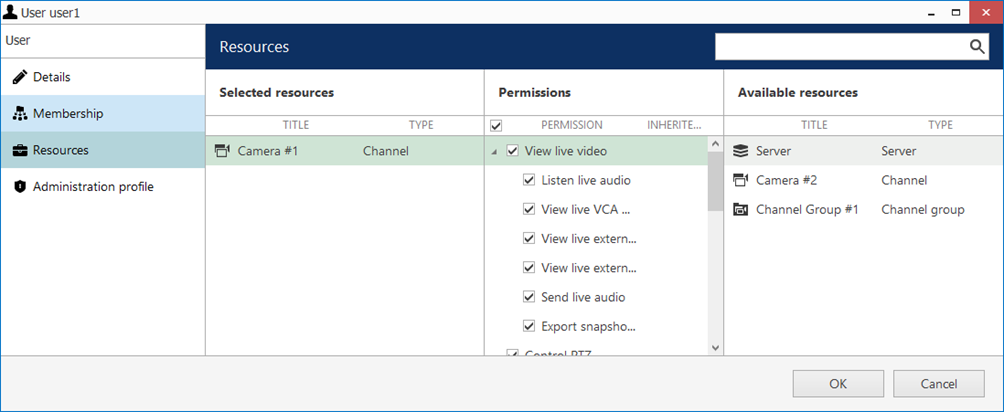
You can handle the user and user group **access permissions** for channels, devices, servers and other resources via the *User* and *User group* configuration dialog box -> *Resources* tab, or via resource settings -> *Permissions* tab. **Administrative permissions** are handled in the *Edit User*/*User group* dialog box, under the *Administration* *profile* tab. Most of the events that are raised as a permission is used are logged in the *Audit log* and are available in the *Audit* section of Macula Console.
{% hint style="info" %}
Please note that some of the permissions may not be applicable to your software license edition.
{% endhint %}
{% hint style="danger" %}
In Macula version 1.6.0, major changes were made to permission management. As a result, configuration imported from an XML file (from old product) will not contain any user permissions: you will need to review and set all user permissions after importing the configuration.
{% endhint %}
#### Access Permissions
All the available resources are listed in the column on the right; click any item to load the permission list in the central column. Then, **mark** all the permissions you wish to grant; resources having at least one permission enabled will be automatically moved to the left column.
All permissions also affect all corresponding requests over API connections.
To **remove** all permissions for some resource, simply double-click it in the *Selected resources* list on the left.
{% hint style="info" %}
It is not possible to select **multiple** resources for the permission management. You are welcome to use resource **grouping** (e.g., channel groups) for easier and faster permission management.
{% endhint %}
When permissions are inherited from some group(s), a corresponding mark will appear in the central column next to the permission type.
The following types of permissions are available (each one can be defined separately):
* **Server**
* **Playback**: allows users to access recorded video, audio, VCA metadata and external data from the specified server for those recordings that do not have corresponding channels in the server configuration (i.e., **orphan archive tracks**)
* **Export**: allows users to export video clips and snapshots from such recording
* **Channel**
* **Live**: access live video, audio, VCA metadata, external service data, external data (from *Data Sources*), send audio OUT and export snapshots from the live view mode
* **PTZ**: general PTZ control, preset and tour usage, preset and tour management OR interactive control of CrossLink devices
* **Playback**: access to recorded video, audio, VCA metadata, external service data, external data (from *Data Sources*), snapshot and video clip export from all playback modes, view and manage bookmarks
* Restricted playback: same permission set with a time limitation\*\*
* Uncategorized: back up and delete archive, protect archive from deletion, remove protection
* Push external metadata: if this user is used for an external service connection, make sure to add this permission for the server to accept the external service metadata (e.g., analytics bounding boxes)
* Trigger channel external event: if this permission is enabled, the target user account can be used to trigger individual channel's external events
* **External Service Group**
* **View live data**: see the live data coming from the external services in the target group
* **External service search**: browse recorded external service data
* **Layout**
* **View**: see and use the layout in Macula Monitor
* **Manage**: delete or replace existing layouts via Macula Monitor
* **Layout Group**
* **View**: see and use layouts from the target group in Macula Monitor
* **Manage**: add new shared layouts from Macula Monitor and delete existing layouts
* **Visual Group**
* **View**: see visual group contents in Macula Monitor**\***
* **Map**
* **View**: see and use the map in Macula Monitor
* **Webpage**
* View: see and use the webpage in Macula Monitor
* **Software Counter**
* **Access archived VCA metadata**: see the counter in Reports in Macula Monitor
* **Video Wall**
* **View**: see and use the video wall in Macula Monitor
* **Manage**: change video wall contents via Macula Monitor
* **User Button**
* **View**: see and use the target user button to viewports in Macula Monitor and in Macula Mobile applications
Starting from the software version 1.15.0, it is possible to grant individual rights for software counters. However, if the *Access archived VCA metadata* permission has been given for the **whole server**, the target user or user group will have access to **all counters** on that server, regardless of the individual counter permissions.
{% hint style="info" %}
\*A visual group will only be displayed in Macula Monitor if the user has permissions to see at least one visual group element.
\*\*The permission sets under time-limited *Restricted video playback* and full *Video playback* are essentially the same. The difference is that restricted access only allows users to access the last N minutes/hours/days of the archive. Therefore, the two sets are mutually exclusive. The restricted interval is defined individually for each server in the server storage settings.
{% endhint %}
When you have finished, click *OK* to save and exit.
#### Administrative Permissions
Administrative permissions for the resources, servers and connections can be managed via *Administration profile* tab in the user management dialog box.
{% hint style="info" %}
Giving a user at least one permission from the *Console* section will allow this user to log into the target server via Macula Console. The corresponding resources will be available for configuration and all the rest of the contents will be hidden.
{% endhint %}
The following types of permissions are available for per-user/per-user group configuration:
* **Client**
* Login via **Monitor**: connect to the target server via Macula Monitor application
* Login via **Monitor** without entering login reason: if unchecked, the user will be prompted to enter a justification (comment) before logging in
* Login via **HTTP**: connect to the target server via Web client and from external services, including LPR and FR
* Login via **Mobile**: connect to the target server from Macula Mobile and OS X app
* **Console**
* Manage **Folders**, **servers**, **users**, **permissions**, **networks**, **external services**: enables the user to access the configuration of the corresponding server contents
* Manage **devices**, device **channels**, **visual groups**, **layouts**, **layout templates**, **video walls**, **maps**, **data sources**, **user buttons**, **shared channels**: enables the user to edit existing and create new (if applicable) resources of the given type
* Manage recording: create and edit **recording profiles, schedules** and **configurations**
* Manage Event & Action rules: create, remove and edit events, actions and all the related resources in the **Events & Actions section**, including mail servers, conditions etc., regardless of permissions for the source items
* Access **audit log** and **monitoring section**: view all the information in the server *Audit* and in the *Monitoring* sections
* Manage **auto backup**: access scheduled backup configuration
* Start wizard: allows users to run the **quick setup wizard** via Macula Console for step-by-step configuration
* **Remote upgrade**: access the remote upgrade section of Macula Console, set up and do the remote upgrade procedure
* **Import configuration**: load configuration from XML (from the old product version) and import existing Macula database
Starting from version 1.13.0, there is an additional user permission under *Administration profile*: log into Monitor application without entering login reason. If this permission is granted, users will log into the Macula Monitor application as usual; if not, an additional prompt will pop up, asking them to enter a justification for logging into the server.
#### Membership
Users can be grouped logically to make permissions management easier. Groups can overlap, meaning that a single user can belong to multiple groups at once, and some groups can be nested - i.e., one group can contain one or more other groups. In addition to own permissions, each user inherits permissions from all the groups he is currently in.
To manage user membership from the user configuration dialog box, double-click any user. This will open the properties window, where you can switch to *Membership* tab. Here you can pick which group - or groups - this user will be a member of.
Double-click on groups or use the *Add/Remove* buttons below to move groups between columns. When you have finished, click *OK* to save changes and exit.
Alternatively, you can select one or multiple users from the users list, then click the *Assign group* button on the upper panel: a list of available groups will appear, allowing you to select one of the existing groups. After this, click *OK* to add selected users to the target group.
We strongly recommend grouping users and resources as it makes the permission management process much easier. Individual user permissions can be combined with permissions inherited from multiple groups at once.
#### Permission Sets and Dependencies
Permission management in Macula is flexible and allows each individual user permission to be enabled separately, thus giving the Macula administrator full control over the system. Sometimes, in order to give enough user rights for specific use case, several different permissions should be granted. This section covers some examples and gives you an idea of what permissions may be related, as well as explains some peculiarities about the permission management in Macula.
#### General
*Administration profile* permissions to manage maps, visual groups, live podcasts etc. include access to all channels from the *Edit* dialog of these entities. For example, a user is granted permission to manage maps but does not have any per-channel permissions: when creating a map, he will be able to put channel markers on it and associate these markers with any channels on the server. At the same time, he will have no access to the channel management whatsoever.
#### Allow a User to Add New Devices
In order to enable a user to add new cameras or devices of other types, it is necessary to grant the following permissions from the *Administration profile*:
* *Manage devices*
* *Manage device channels*
This is necessary as devices and channels are related entities in Macula and a single Manage devices permission is not enough as new channels are created automatically alongside with the newly added devices.
The *Manage devices* permission itself allows the user to change device settings (e.g., IP address, group membership) and create new device groups.
#### Access Data from Third Party Services
To see the data from external services (e.g., LPR/FR recognitions) in the live view notification panel or search the past records, the following permission sets are required:
* **Live**:
* *View live external service data* (per-channel permission under *View live video* permission group)
* *View live external service data* (permission for the external service group)
* **Archive**:
* External service search (per-channel permission under *Video playback* permission group)
* *External service search* (permission for the external service group)
This allows to cover the case when one channel belongs to several different external service groups.
#### Archive Backup
Archive backup permissions have the following logic:
* *Make archive backups* permission from the *Administration profile* allows Archive Backup Wizard login
* *Backup archive* per-server permission from the *Video playback* permission group grants access to the orphaned archive tracks (recordings that exist on the server but do not have any existing channels in the system configuration associated with them)
* Backup archive per-channel permission under *Video playback* permission group grants access to the footage of the target channel via Archive Backup Wizard
#### Snapshot Export
For a user to be able to save multichannel snapshots from the *Archive playback* mode, the *Export snapshots from playback* permission must be granted for all channels present in the layout.