> For the complete documentation index, see [llms.txt](https://gsfcorp.gitbook.io/macula/llms.txt). Markdown versions of documentation pages are available by appending `.md` to page URLs; this page is available as [Markdown](https://gsfcorp.gitbook.io/macula/administration-guide-v1.33.0/server-policies.md).

# Server Policies

Macula policies are configurable sets of rules that are followed by Macula servers when handling access requests. At this point, these include security settings and external database configuration. Default values and state of the policies depend on the chosen security level.

#### Security Policy

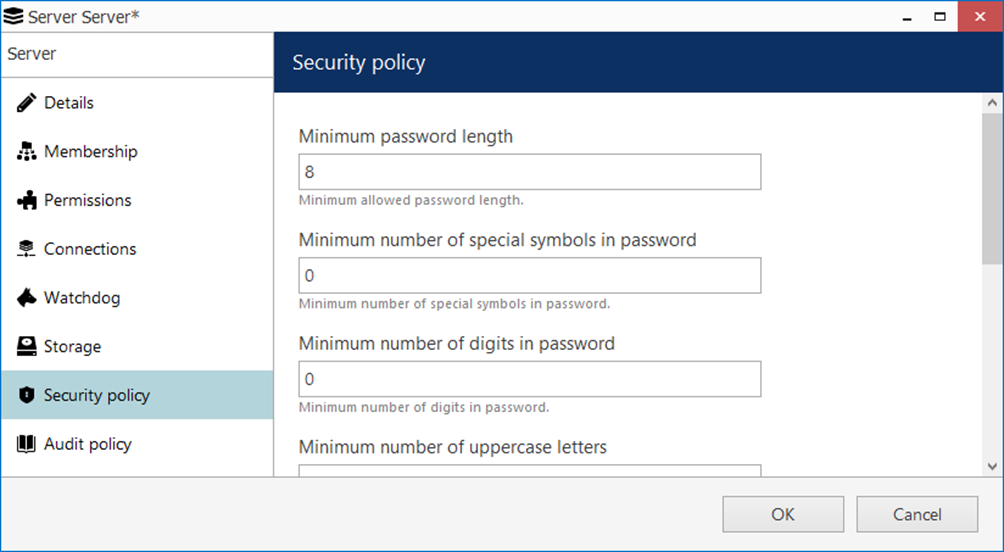
Security settings related to password management, connections etc. can be defined for each server. To access server security policy settings via Macula Console, choose the *Configuration* section, select *Servers* from the menu on the left, double-click your target server and then click the *Security policy* tab.

It is recommended that, in order to enhance your system security, you do not leave the default policy settings but rather define your own, system-specific preferences.

<figure><img src="https://412599993-files.gitbook.io/~/files/v0/b/gitbook-x-prod.appspot.com/o/spaces%2FeNXnJx0OpvxnmpWqOBNm%2Fuploads%2FfSSrobGxAq3FTLVo7kuY%2Fimage.png?alt=media&amp;token=34ffd069-17e2-48e1-a254-28844fc19f8c" alt=""><figcaption></figcaption></figure>

The table below details the available settings.

| Setting                                                             | Description                                                                                                                                                                                                                                                                                                                                                                                                                                                                                                                                                                                                                                                                                                                                                                                                                                                                                                                                                                                                                                                                                                        | Default Value           |
| ------------------------------------------------------------------- | ------------------------------------------------------------------------------------------------------------------------------------------------------------------------------------------------------------------------------------------------------------------------------------------------------------------------------------------------------------------------------------------------------------------------------------------------------------------------------------------------------------------------------------------------------------------------------------------------------------------------------------------------------------------------------------------------------------------------------------------------------------------------------------------------------------------------------------------------------------------------------------------------------------------------------------------------------------------------------------------------------------------------------------------------------------------------------------------------------------------ | ----------------------- |
| Minimum password length                                             | Minimal mandatory length of a user password                                                                                                                                                                                                                                                                                                                                                                                                                                                                                                                                                                                                                                                                                                                                                                                                                                                                                                                                                                                                                                                                        | 8                       |
| Minimum number of special symbols                                   | Define how many (at least) special characters (#$%&...) must be present in a user password                                                                                                                                                                                                                                                                                                                                                                                                                                                                                                                                                                                                                                                                                                                                                                                                                                                                                                                                                                                                                         | 2                       |
| Minimum number of digits                                            | Define how many (at least) digits must be present in a user password                                                                                                                                                                                                                                                                                                                                                                                                                                                                                                                                                                                                                                                                                                                                                                                                                                                                                                                                                                                                                                               | 2                       |
| Minimum number of uppercase letters                                 | Define how many (at least) UPPERCASE letters must be present in a user password                                                                                                                                                                                                                                                                                                                                                                                                                                                                                                                                                                                                                                                                                                                                                                                                                                                                                                                                                                                                                                    | 2                       |
| Minimum number of lowercase letters                                 | Define how many (at least) lowercase letters must be present in a user password                                                                                                                                                                                                                                                                                                                                                                                                                                                                                                                                                                                                                                                                                                                                                                                                                                                                                                                                                                                                                                    | 2                       |
| Number of previous passwords to remember                            | Password history to be kept by the server to prevent the user from using the same password again when changing it                                                                                                                                                                                                                                                                                                                                                                                                                                                                                                                                                                                                                                                                                                                                                                                                                                                                                                                                                                                                  | 1                       |
| Maximum number of days between password change                      | Define how frequently Macula will ask users to change their password; this setting can be overridden in the user settings to make the password never expire for a specific user                                                                                                                                                                                                                                                                                                                                                                                                                                                                                                                                                                                                                                                                                                                                                                                                                                                                                                                                    | 0 (unlimited)           |
| Maximum number of simultaneous connections with the same login name | Allowed number of simultaneous incoming connections from the same user account via any port (TCP/HTTP) or client app, this setting can be overridden for the specific user in the user settings; 0=unlimited                                                                                                                                                                                                                                                                                                                                                                                                                                                                                                                                                                                                                                                                                                                                                                                                                                                                                                       | 0 (unlimited)           |
| <p>Maximum unsuccessful</p><p>login attempts\*</p>                  | After this number of unsuccessful login attempts the user account will be blocked (can be unlocked via user properties). Set 0 to allow unlimited attempts.                                                                                                                                                                                                                                                                                                                                                                                                                                                                                                                                                                                                                                                                                                                                                                                                                                                                                                                                                        | 0                       |
| Disconnect disabled users\*\*                                       | Disconnects User from Server as soon as system marks account as disabled                                                                                                                                                                                                                                                                                                                                                                                                                                                                                                                                                                                                                                                                                                                                                                                                                                                                                                                                                                                                                                           | Disabled (not selected) |
| Disconnect upon user password change\*\*                            | Disconnects User from Server as soon as password change event happens                                                                                                                                                                                                                                                                                                                                                                                                                                                                                                                                                                                                                                                                                                                                                                                                                                                                                                                                                                                                                                              | Disabled (not selected) |
| Disconnect if password expires\*\*                                  | Disconnects User from Server if user password is expired                                                                                                                                                                                                                                                                                                                                                                                                                                                                                                                                                                                                                                                                                                                                                                                                                                                                                                                                                                                                                                                           | Disabled (not selected) |
| Disconnect if auth token is reset\*\*                               | Disconnects User from Server if authentication token was reset                                                                                                                                                                                                                                                                                                                                                                                                                                                                                                                                                                                                                                                                                                                                                                                                                                                                                                                                                                                                                                                     | Disabled (not selected) |
| Put user ID as an OSD watermark                                     | <p>Add <strong>watermark</strong> with the <strong>logged-in monitor</strong> <strong>User's ID</strong> over the all <em>Live View</em> and <em>Playback</em> viewports displaying video streams. Such a watermark allows compliance with GDPR and specific countries' local data and privacy protection regulations, making it possible to identify any data leak source recorded even by a third-party recorder (such as a phone) directly from the display. <strong>You can't change the text</strong> displayed in the watermark - the only option is to turn on or off the feature.</p><p> </p><p>By default, the <em>OSD watermark</em> will be applied to all users. You can also disable <em>OSD Watermarks</em> for particular users. To do so, go to <em>Configuration -> Users</em>, double-click on the particular <em>User</em>, and inside the popup window, find the <em>Administration profile</em> tab. Scroll to the bottom and find the subsection <em>Client Permissions -> Do not display OSD watermark</em>. Mark the corresponding checkbox and confirm with the apply button.</p><p> </p> | Disabled (not selected) |

Password related policies are solely meant for Macula internal users and they do not affect any other user account settings (e.g., Windows users etc.). All policies are in effect for **all user accounts**, including the built-in root *admin* user account.

\*To **unlock the user** account, go to the *Users* section > open the user details for editing > enable the *Active* option > save. To override the policy for a specific user, enable the *Never lock account on bad password* option in the user account details.

\*\* **if** the option is disabled - the user will continue with the current session, even if this particular user is already disabled.

{% hint style="info" %}
The **maximum number of simultaneous connections** from the same user account can be re-defined for any specific user via user settings dialog box. User-specific setting has priority over global connection quota and it may be either larger or smaller than the global quota.

**Example 1**: global policy is set to 0, which means no imposed limitations. However, user account *admin* has his max number of connections set to 3, which means that three incoming connections with this user account are allowed at a time so that the administrator can connect via Macula Console, Macula Monitor and Macula Mobile at once for troubleshooting purposes.

**Example 2**: global policy is set to 1, which means only one connection from each user is allowed at a time. However, user *demo* has an allowance of 30 simultaneous connections so that this account can be used for demonstration purposes.
{% endhint %}

#### Two-Factor Authentication

For additional security, you can turn ON **two-factor authentication** (2FA) for all client logins. When 2FA is enabled, all users who want to connect to your Macula server, will have to enter both their password and a code they receive. Thus, the users prove their identity not just by entering what they know (the password) but also what they have (the email or phone). By default, this policy affects all users; you can disable 2FA for individual users in their permissions.

{% hint style="info" %}
At this point, Macula 2FA supports code sending via **email** and **SMS**, and works for Macula Console and Macula Monitor login.
{% endhint %}

Terminology:

* session: an established connection between client and server once the user logs in
* code: a numeric code sent to the user's email

The following settings are available here:

| Setting                          | Description                                                                                                                                                                                                       | Default Value         |
| -------------------------------- | ----------------------------------------------------------------------------------------------------------------------------------------------------------------------------------------------------------------- | --------------------- |
| Enable two-factor authentication | If selected, additional authentication will be required for server login                                                                                                                                          | Disabled              |
| Set up notification providers    | Set up desired providers (using email servers or other means) that will be used for sending out authentication codes                                                                                              | \[button]             |
| Session expiration time          | During this time period, 2FA will not be requested again if client disconnect was caused by server; after this time or after user-initiated disconnect, the user will have to use additional authentication again | 1 day                 |
| Code expiration time             | The time period during which the sent code will be valid, starting from the code send out moment; after this time, the user will have to request another code                                                     | 00:05:00 (5 minutes)  |
| Code generation interval         | The minimum time between two consequent code requests; the user will be unable to request a code more frequently                                                                                                  | 00:00:10 (10 seconds) |
| Skip for localhost connection    | If enabled, 2FA will not be applied to localhost connection                                                                                                                                                       | Enabled               |
| Subject                          | Message subject line, can consist of text and macros (via right-click)                                                                                                                                            | {SESSION\_ID}         |
| Body                             | Main message part, can consist of text and macros (via right-click)                                                                                                                                               | {CODE}                |

{% hint style="info" %}
Name your **notification providers** according to the used verification source (e.g., **Email**) so that the users understand where to look for the code.
{% endhint %}

{% hint style="info" %}
Write some text in addition to the session ID and the code so that:

1. The user understands which one is which
2. The email does not go to Spam
   {% endhint %}

When you try enabling 2FA, you will get a warning that you will need to test 2FA before saving the configuration. This is necessary to ensure that all the settings are correct and 2FA actually works; otherwise, you may be unable to log into the system at some point. The 2FA verification will start when you click OK to save and close the settings window.

Settings to be verified before enabling 2FA:

* make sure you have added a valid 2FA notification provider (SMTP server)
* add a contact email for each user
* it is recommended that at least one administrative user account is allowed to log in without 2FA, or 2FA is disabled for localhost connections: this is to ensure that you can log into the system if your 2FA notification provider fails or becomes unavailable

<figure><img src="https://412599993-files.gitbook.io/~/files/v0/b/gitbook-x-prod.appspot.com/o/spaces%2FeNXnJx0OpvxnmpWqOBNm%2Fuploads%2FLNRZbn8UszDvz8dR2odp%2Fimage.png?alt=media&amp;token=cb2abf15-e49a-48d9-869f-de19abb3dbd8" alt=""><figcaption></figcaption></figure>

The best approach for 2FA configuration:

* in 2FA settings, add a notification provider and adjust everything but do not enable 2FA yet, click OK to save
* make sure your email server user for notification provider is valid, and that all users have correct emails
* go to 2FA settings again and enable it, and go through the test verification

When you turn off 2FA, you will have to go through the setting verification again next time you enable it. If you make changes to the 2FA settings and enable it at once, this test verification will use the previous settings for formatting and intervals (because it basically happens before saving the settings, and these will not be saved until you pass 2FA successfully).

Two-factor authentication is also a recommended setting when you choose the highest cybersecurity level – the system will check if 2FA is enabled and remind you with a warning mark if it is not.

#### Audit Policy

Whenever a permission is used, a corresponding entry appears in the internal Macula audit log; internal server events are logged as well. The audit policy lets you define, which user actions and server events are recorded, as well as set the maximum size and duration of the audit log.

<figure><img src="https://412599993-files.gitbook.io/~/files/v0/b/gitbook-x-prod.appspot.com/o/spaces%2FeNXnJx0OpvxnmpWqOBNm%2Fuploads%2FKPyLJw4RkAreCYwcAPvJ%2Fimage.png?alt=media&amp;token=adde91d3-905e-41cf-8a4b-588c6500475c" alt=""><figcaption></figcaption></figure>

The default limit for the number of audit entries is one million and they are kept for one month; set zero days to disable the duration limitation (the quota for the number of records will still have effect). By default, all the events are audited.

#### External Audit

For Macula Global software edition, it is possible to set up log event storing in an **external audit database**.

The main (internal) audit log is kept always, and the external audit is a copy (addition). You cannot turn OFF the internal audit if you do not need it, but you can limit it to one or two days, and keep the external log for a longer period. The built-in database (SQLite) is OK for low and medium load; for high and extra high load, especially for lots of entries per second, an external database with extra hardware is strongly recommended.

<figure><img src="https://412599993-files.gitbook.io/~/files/v0/b/gitbook-x-prod.appspot.com/o/spaces%2FeNXnJx0OpvxnmpWqOBNm%2Fuploads%2FEo86Nt0RtUrwfyu8zeXf%2Fimage.png?alt=media&amp;token=71a71dc6-d2df-45f9-9da8-82b7f150b44b" alt=""><figcaption></figcaption></figure>

At this point, three database formats are supported:

* SQL database
* PostgreSQL
* MySQL

First, set up your external database, and then fill in the corresponding settings in Macula Console: server **host, port, user account**, and target **database name**.

{% hint style="danger" %}
Please consult with your database server architect to build the database server. Macula hardware recommendations do not include hardware for the external database server.
{% endhint %}

<figure><img src="https://412599993-files.gitbook.io/~/files/v0/b/gitbook-x-prod.appspot.com/o/spaces%2FeNXnJx0OpvxnmpWqOBNm%2Fuploads%2FN3wQ1JCVITDyM4VUPRJO%2Fimage.png?alt=media&amp;token=423312d0-c3ae-4ed8-8194-e6043c0bf924" alt=""><figcaption></figcaption></figure>

After adding the database connection, you can **test** it to verify that the entered configuration is correct. The database **must exist** for the Macula server to connect successfully, and you cannot create a new external database from Macula Console. The connection test runs **automatically** once you have entered a new DB connection or modified the connection settings.

{% hint style="danger" %}
The connection **test may take some time**. You can tell by the disabled (grayed out) buttons below. If you close the server settings dialog box, the test will still run in background so you will have the result pop up after some time.
{% endhint %}

If your target database contains something else and you want to clean it, press *Reset*: all contents of the target database will be then **removed** and replaced with the tables necessary for the audit log.

Similarly, to internal audit, here you can **limit** for how long and how many records should be kept in the external audit database. Set zeroes for **unlimited** options (the number of records will be then only limited by database type).

{% hint style="info" %}
External databases are recommended when you need to keep larger amounts of information for much longer periods of time. The built-in database (SQLite) is OK for low and medium load; for high and extra high load, especially for lots of entries per second, an external database with extra hardware is strongly recommended.
{% endhint %}

You can prepare the database connection and leave it disabled (default mode) until you decide to **enable** the external logging. To do this, put the check mark in the corresponding checkbox.

When done, click *OK* to save the settings and close the dialog box.

**Troubleshooting**: if, during operation, the Macula server is **unable** **to write** events to the external database, you will have a **warning** (highlighted orange) in the *Monitoring* section of Macula Console, under the Servers category. Click the target Macula Global server, then click *Details* on the upper panel to see the **database connection errors**.

#### External Databases

For certain data types, you can set up separate databases in a similar manner. In the *External Databases* tab, available databases will appear.

Currently available: a separate database named *Recognition history database* can used for storing external recognition events. Without it, only metadata (bounding boxes) are stored for external recognitions (in the video archive), so you will be unable to search these events in a separate tab in Macula Monitor. If you do not use external services/cameras for LPR/FR recognition, you will not be needing this database.

{% hint style="info" %}
If you have made a clean installation, this DB is enabled by default. If you made an upgrade from a software version prior to 1.21, this DB is disabled.
{% endhint %}

Click the ![](https://412599993-files.gitbook.io/~/files/v0/b/gitbook-x-prod.appspot.com/o/spaces%2FeNXnJx0OpvxnmpWqOBNm%2Fuploads%2FTg8Fla8aH97p9psYZ135%2Fimage.png?alt=media\&token=a19fde17-fd69-4fa5-8601-a416ef4f25e6)  *Edit* button to change the built-in database settings: limit the number of recordings and the number of days, and enable/disable the database. Click *OK* to save and then *OK* again to save and close the dialog box.

<figure><img src="https://412599993-files.gitbook.io/~/files/v0/b/gitbook-x-prod.appspot.com/o/spaces%2FeNXnJx0OpvxnmpWqOBNm%2Fuploads%2FW6wx4PvzOO6wlN77VtpE%2Fimage.png?alt=media&amp;token=9f0ef4eb-46a1-4b27-be81-5b9572a3c36b" alt=""><figcaption></figcaption></figure>

#### Bookmark Policy

Here, you can set limits for the bookmark database by defining its desired duration and size, and also change bookmark colors for different severity levels. The settings here affect the whole system - all servers, all channels.

The default (and also the maximum) **number of records** (items in the database) is 500000, and they are kept for 5 (five) years. Set 0 days to set unlimited **duration quota** (the items' quota will still have effect).

<figure><img src="https://412599993-files.gitbook.io/~/files/v0/b/gitbook-x-prod.appspot.com/o/spaces%2FeNXnJx0OpvxnmpWqOBNm%2Fuploads%2FAKWTPZlGvxi7LQwIX2Zg%2Fimage.png?alt=media&amp;token=d0228db2-3e5d-44fa-9c8f-6d109bcfb4c5" alt=""><figcaption></figcaption></figure>

These limitations were introduced in the software version 1.14.1. Therefore, when you upgrade from an older version, database will be reduced in size by removing the oldest bookmarks so that their number matches the default quota (500000). If the old database contains more than 1 million items, it is truncated and compacted during the upgrade.

<figure><img src="https://412599993-files.gitbook.io/~/files/v0/b/gitbook-x-prod.appspot.com/o/spaces%2FeNXnJx0OpvxnmpWqOBNm%2Fuploads%2FCFSuP3btzGz3lkDrQHCJ%2Fimage.png?alt=media&amp;token=34e550a2-0172-498b-82de-216fafe6a005" alt=""><figcaption></figcaption></figure>

Bookmark **severity levels** were introduced in the software version 1.16.0. Prior to this version, all bookmarks were red and had no ranking; to preserve compatibility with older archive, all bookmarks from the older archive will stay red and have the highest severity, *Critical*. Here, in the policy tab, you can change the colors used for different bookmark labels. To do this, select an item in the ranking list, then choose a color using the built-in picker.

After you change the color related to a certain severity level, all bookmarks with that severity level will start using the new color. If the bookmarks are already opened somewhere (e.g., on the timeline of a Macula Monitor), simply refresh the timeline to see the new color: remove the channel from the view and add it anew. In instant playback mode, switching to live and back will do the trick.

#### NTP Server

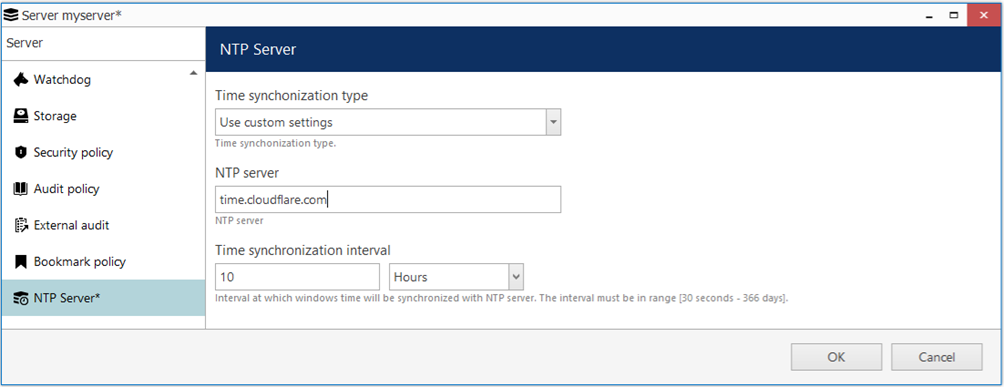
Macula servers use the local machine time. Macula Console provides you with an opportunity to force **sync time** with the specified NTP server.

Essentially, this is the same as configuring the target server OS use the specified NTP server: the time server you set via Macula Console is applied to the underlying OS settings. The only difference is that you can do this remotely via Macula Console interface, without connecting via RDP or other remote control software.

<figure><img src="https://412599993-files.gitbook.io/~/files/v0/b/gitbook-x-prod.appspot.com/o/spaces%2FeNXnJx0OpvxnmpWqOBNm%2Fuploads%2FXQBo07xV8EWX114TIL1b%2Fimage.png?alt=media&amp;token=c0f5a234-9ce3-4d10-9367-a1a87022b8f2" alt=""><figcaption></figcaption></figure>

The available settings here are:

* NTP server: the target IP or hostname of the time server, local or public
* Time synchronization interval: how often to sync the time, choose any desired interval from 30 seconds up to 1 year.