> For the complete documentation index, see [llms.txt](https://gsfcorp.gitbook.io/macula/llms.txt). Markdown versions of documentation pages are available by appending `.md` to page URLs; this page is available as [Markdown](https://gsfcorp.gitbook.io/macula/administration-guide-v1.33.0/interface-overview-management-application.md).

# Interface Overview: Management Application

Macula Console is a straightforward graphics user interface tool with access to all possible server settings. To ensure comfortable and easy navigation, it is important that you become acquainted with its structure before starting to use it.

Note that Macula Console appearance slightly depends on your software package and license limitations. Nevertheless, its logic always remains the same. Those sections, which are unavailable due to license restrictions, will be grayed out but still listed to get you acquainted with all available features. You can hide those features via Macula Console settings or upgrade your Macula server to a superior version.

<figure><img src="https://412599993-files.gitbook.io/~/files/v0/b/gitbook-x-prod.appspot.com/o/spaces%2FeNXnJx0OpvxnmpWqOBNm%2Fuploads%2FY0h2xyBfUBALiaanZAAs%2Fimage.png?alt=media&amp;token=fa298ec5-fc92-4959-8c0e-eaebbe9ead2e" alt=""><figcaption></figcaption></figure>

#### Navigation Panel

<figure><img src="https://412599993-files.gitbook.io/~/files/v0/b/gitbook-x-prod.appspot.com/o/spaces%2FeNXnJx0OpvxnmpWqOBNm%2Fuploads%2FywCYEeCw2Ft9GjRlzBcC%2Fimage.png?alt=media&amp;token=afb9347b-376d-40e5-8c3d-be1c902e676f" alt=""><figcaption></figcaption></figure>

The blue panel on top serves as navigation bar and its usage is similar to that of Windows Explorer. Here are its main components (from left to right):

* *Left* and *Right* arrows enable navigation through your browsing history and allow you to switch between previous and next locations; you can also use Backspace on your keyboard to go back
* Your current location is displayed right next to these arrows
* Currently logged in User account button with options to view user profile, switch servers\*, or to log out
* *Refresh* button - reloads current item list
* *Search* field - only items matching the search criteria will be displayed in the list

\*The option to switch servers is hidden by default and can be enabled via application menu.

#### Application Menu

<div align="left"><figure><img src="https://412599993-files.gitbook.io/~/files/v0/b/gitbook-x-prod.appspot.com/o/spaces%2FeNXnJx0OpvxnmpWqOBNm%2Fuploads%2FLsmTzkAvYkAQrBDQTvOl%2Fimage.png?alt=media&amp;token=62c2ccb5-a45f-4c1f-9bc9-21c6f87bef10" alt=""><figcaption></figcaption></figure></div>

* Application menu button in the upper-right-hand corner gives you the following launches the options:
* launch the Setup Wizard
* import the configuration from an XML file
* import the configuration from another GSF Macula server database
* change Macula Console settings
* enable cybersecurity checks
* set up automatic configuration backup
* remotely upgrade system components
* open the software documentation
* open the About section

#### User Menu

This menu offers the following options:

* View current user profile and adjust their settings, if necessary
* Quickly change the password for the current user (will not open the user profile dialog)
* Switch server: if enabled in the application menu, this option allows quick switching between different servers with the same user account
* Log off and return to the initial Macula Console login interface

<figure><img src="https://412599993-files.gitbook.io/~/files/v0/b/gitbook-x-prod.appspot.com/o/spaces%2FeNXnJx0OpvxnmpWqOBNm%2Fuploads%2FAwGf33mNqwz1S7yUXVJD%2Fimage.png?alt=media&amp;token=142bad25-787d-404b-8e46-fd04d725ea1a" alt=""><figcaption></figcaption></figure>

The server switching option allows you to pre-configure a list of servers and then switch between them with a single click. This feature is useful for engineers who maintain multiple locations/customers, and for Macula Enterprise system engineers to quickly switch between Macula Enterprise and servers.

<figure><img src="https://412599993-files.gitbook.io/~/files/v0/b/gitbook-x-prod.appspot.com/o/spaces%2FeNXnJx0OpvxnmpWqOBNm%2Fuploads%2Fkvf38DHlvu730IcJHO11%2Fimage.png?alt=media&amp;token=f9baf011-676a-4e5c-9c76-64422d27ed24" alt=""><figcaption></figcaption></figure>

#### Main Macula Console Sections

With the latest release of Macula, a major update to the **Components Panel** (Left panel) is introduced. This chapter will describe new options and help you to streamline and personalize your console interactions.

* The very top of the **Component Panel** allows you to search for a **Component** by its name.
* With the update, all four **Sections** (*Configuration, Events & Actions, Monitoring,* and *Audit*) are represented by corresponding icons at the bottom of the panel.
* The main part of the **Left Panel** now displays all available **Sections** and **Components**, allowing for the expansion or collapse of the corresponding Section.
* You can also create a new custom **Section** (*Pinned*) from the pinned **Components** and hide everything else, streamlining your access to the **Components** that matter most to you.

<figure><img src="https://412599993-files.gitbook.io/~/files/v0/b/gitbook-x-prod.appspot.com/o/spaces%2FeNXnJx0OpvxnmpWqOBNm%2Fuploads%2FrHLB5jplsQSzgGgZetrw%2Fimage.png?alt=media&amp;token=bae5a53e-d486-47f9-957c-d1e7ae7cc3e5" alt=""><figcaption></figcaption></figure>

### Design and Operations

#### Textual Search

At the very top of the **Component Panel**, you can find a new input field. You can quickly search for any **Component** by name. Search will hide any irrelevant **Sections** and **Components**. If the relevant **Section** was in a collapsed state before the search input, you will need to expand it to see the **Component** you are looking for.

<figure><img src="https://412599993-files.gitbook.io/~/files/v0/b/gitbook-x-prod.appspot.com/o/spaces%2FeNXnJx0OpvxnmpWqOBNm%2Fuploads%2FkmkcLysbbTTHuhUhwKqG%2Fimage.png?alt=media&amp;token=4a8133d1-217f-4665-bb44-f773a1db86e0" alt="" width="329"><figcaption></figcaption></figure>

#### Expanding Sections

You can still visually navigate through all the **Components** or make your **Panel** look cleaner by clicking on the arrow symbol to the left of the **Section** name. To collapse the **Section**, click the arrow symbol again.

<figure><img src="https://412599993-files.gitbook.io/~/files/v0/b/gitbook-x-prod.appspot.com/o/spaces%2FeNXnJx0OpvxnmpWqOBNm%2Fuploads%2FsdFG2sAGQTGpDTdwgn9A%2Fimage.png?alt=media&amp;token=20b57233-bfdc-4bb3-903d-9a34768315a5" alt="" width="340"><figcaption></figcaption></figure>

#### Hide/show sections

At the very bottom of the **Left Panel**, you can find the **Section Icons.** Icons for the *Configuration, Events & Actions, Monitoring,* and *Audit* will always be visible. One more Icon for **Pinned Components** is displayed dynamically - only when any Items are pinned. Click the **Section Icon** to show only the selected **Section**. To unhide other sections, click the displayed **Section Icon** again.

<figure><img src="https://412599993-files.gitbook.io/~/files/v0/b/gitbook-x-prod.appspot.com/o/spaces%2FeNXnJx0OpvxnmpWqOBNm%2Fuploads%2FOyHAkFmfHJqv3jRTG62g%2Fimage.png?alt=media&amp;token=fcc0ef0a-1fcf-4d79-b2fe-cbdba1c236a2" alt="" width="338"><figcaption></figcaption></figure>

#### Pinned Components

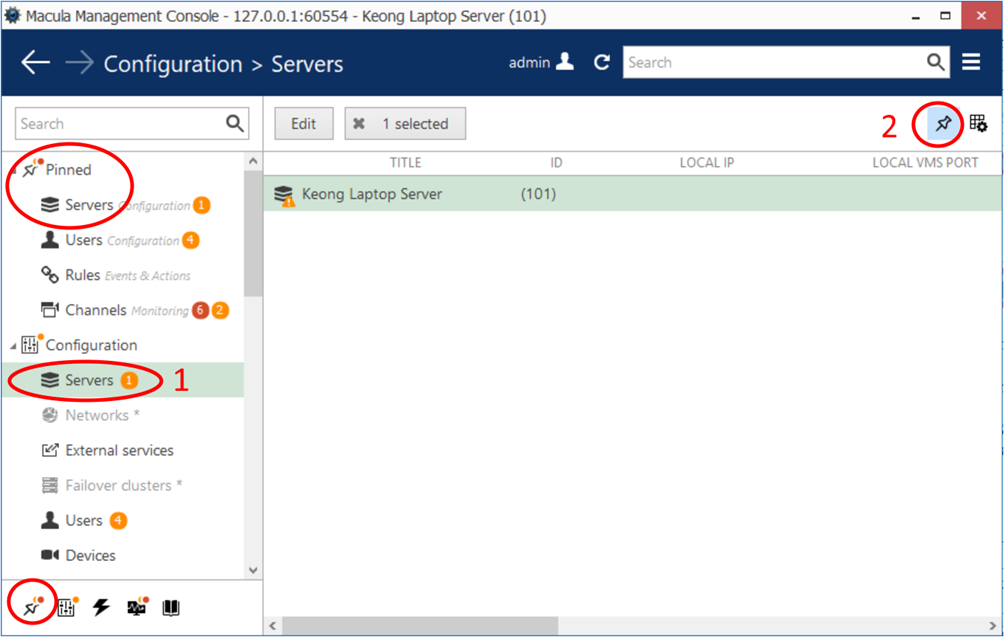
Macula continually adds new features and **Components**, which can make the options overwhelming. To help you organize and prioritize frequently used **Components**, the *Pinned* **Section** is introduced. To add a **Component** to this **Section**, follow these steps:

1. Find the **Component** you want to pin from the existing list.
2. Click the **Pin Icon** at the top-right corner of the screen.

If no Components were previously pinned, a new **Section** named “*Pinned*” will appear at the very top of the **Left Panel**. The selected **Component** will appear inside this **Section**. You can collapse or expand the *Pinned* **Section** like any other section. Additionally, a new **Pin Icon** for pinned components will appear at the very bottom of the **Left Panel**. Clicking this **Pin Icon** allows you to show or hide other sections.

<figure><img src="https://412599993-files.gitbook.io/~/files/v0/b/gitbook-x-prod.appspot.com/o/spaces%2FeNXnJx0OpvxnmpWqOBNm%2Fuploads%2FyXRp8uXUvixP2wMSA7en%2Fimage.png?alt=media&amp;token=c830a888-fe3d-4b30-8f45-667df38be026" alt=""><figcaption></figcaption></figure>

{% hint style="info" %}
Some chapters of this manual might contain screenshots from the previous versions. Most of the descriptions remain relevant, except for the changes to the panel itself.
{% endhint %}

#### Item List

The main part of the Macula Console window displays items in the selected category depending on the search and/or item filters. You can select one or more items at once using the *Shift* or *CTRL* button.

<figure><img src="https://412599993-files.gitbook.io/~/files/v0/b/gitbook-x-prod.appspot.com/o/spaces%2FeNXnJx0OpvxnmpWqOBNm%2Fuploads%2FKD7So3N0ql4APZqjWUtg%2Fimage.png?alt=media&amp;token=fd86762b-b111-404d-8da9-d0e0d55ba573" alt=""><figcaption></figcaption></figure>

Click any column title to use is as a sorting basis for the whole item list; the little arrow near the column title indicates that it is currently being used for arrangement - either ![](https://412599993-files.gitbook.io/~/files/v0/b/gitbook-x-prod.appspot.com/o/spaces%2FeNXnJx0OpvxnmpWqOBNm%2Fuploads%2FELLGpCzK5QoDo1CvZPmi%2Fimage.png?alt=media\&token=2c8ad06e-1218-4906-982b-810902215038) ascending or ![](https://412599993-files.gitbook.io/~/files/v0/b/gitbook-x-prod.appspot.com/o/spaces%2FeNXnJx0OpvxnmpWqOBNm%2Fuploads%2FUCBET7RDpi8LffD5UWZC%2Fimage.png?alt=media\&token=20b4f7f1-5ab8-40c5-9155-cdb97f55130d) descending. Right-click item list header for sorting options and column fit settings. The Best fit option will assign automatic size to all columns based on their name width. You can change column width simply by dragging their boundaries in the header row: these adjustments will be remembered and restored after you go to other sections, or close and re-open the Macula Console application.

<figure><img src="https://412599993-files.gitbook.io/~/files/v0/b/gitbook-x-prod.appspot.com/o/spaces%2FeNXnJx0OpvxnmpWqOBNm%2Fuploads%2FMmYxG98WW5nIKzkfiIlI%2Fimage.png?alt=media&amp;token=db3f7805-3958-43de-9158-b104613ec4fa" alt=""><figcaption></figcaption></figure>

For each category, it is possible to **define the set of columns** to be displayed, and **freeze** one or several leftmost columns for convenient horizontal scrolling. To do this, click the grid icon ![](https://412599993-files.gitbook.io/~/files/v0/b/gitbook-x-prod.appspot.com/o/spaces%2FeNXnJx0OpvxnmpWqOBNm%2Fuploads%2FvWQ1wXuCBYJVmvgFqfRT%2Fimage.png?alt=media\&token=5f035a12-8aa5-41e6-bc64-ec9332903931) in the upper right corner just below the application menu (the rightmost button in the upper panel). An additional window will pop up, allowing you to define the column layout.

<figure><img src="https://412599993-files.gitbook.io/~/files/v0/b/gitbook-x-prod.appspot.com/o/spaces%2FeNXnJx0OpvxnmpWqOBNm%2Fuploads%2FGa8uIU8v1j91YDm8qGt4%2Fimage.png?alt=media&amp;token=af631ec0-f09c-4078-b821-5018af6c0f87" alt=""><figcaption></figcaption></figure>

One the left, you will see the currently displayed details. On the right, there will be all available columns.

* Use the *Add* and *Remove* buttons, or simply **double-click** items to move them from left to right and vice versa to select and deselect them.
* Use the *Up* and *Down* arrows to sort your selected columns on the left side.
* The grid button next to these arrows allows you to **freeze/unfreeze** the leftmost columns (i.e., those on top of the list). These will stick to the left window side as you scroll the table horizontally. You can freeze as many columns as you like, but only the ones on the far left side. For the columns in the middle of the list, this button will be grayed out (inactive).
* To discard all changes and **restore** the default (application original) list of columns, click the Reset button.

When done adjusting the table layout, click *OK*. Your new column configuration will appear: adjust the width of the newly appeared details, as desired.

#### Item Actions

<div align="left"><figure><img src="https://412599993-files.gitbook.io/~/files/v0/b/gitbook-x-prod.appspot.com/o/spaces%2FeNXnJx0OpvxnmpWqOBNm%2Fuploads%2FB7X5CQWBVI9T5e8karkS%2Fimage.png?alt=media&amp;token=bc870d40-7173-428a-95b0-2f0df8298471" alt="" width="362"><figcaption></figcaption></figure></div>

The panel above the item list displays the available actions, if applicable. Usually, the buttons here will allow you to create a new item, edit or delete existing ones, create or edit contiguous items, etc.

#### Item Filters

<figure><img src="https://412599993-files.gitbook.io/~/files/v0/b/gitbook-x-prod.appspot.com/o/spaces%2FeNXnJx0OpvxnmpWqOBNm%2Fuploads%2FusCwWtAc5TNXusviBH4F%2Fimage.png?alt=media&amp;token=4850e6c0-ddb0-415d-b36e-fbd5ae94bb2c" alt=""><figcaption></figcaption></figure>

The bottom panel contains miscellaneous item filters, such as: recently added and updated, corresponding groups etc. Click any of the filters to apply them; use the *X* button to reset and display the full item list.

#### Application Settings

To change Macula Console application settings, go to the main application menu in the upper-right-hand corner and choose *Settings*. The preferences here only affect the current Macula Console instance, no matter to which server it connects. The interface language setting also affects the Macula Monitor application installed on the same machine.

For your convenience, the settings have been grouped into several tabs.

<figure><img src="https://412599993-files.gitbook.io/~/files/v0/b/gitbook-x-prod.appspot.com/o/spaces%2FeNXnJx0OpvxnmpWqOBNm%2Fuploads%2FfnF7Ofb7QEImj5FlHF64%2Fimage.png?alt=media&amp;token=14accc14-7c6c-4e82-8028-78f237993c45" alt=""><figcaption></figcaption></figure>

Here, it is possible to:

* change application **language** (by default, the language chosen during installation is used)
* show or hide software features restricted by license
* show or hide **object identifiers** (internal object IDs mostly necessary for addressing GSF Macula entities via HTTP API)
* show or hide Organizations
* enable quick server switching
* reset all *Don't show this again* checkboxes, which have been set so far

#### Monitoring

This section contains settings related to the Monitoring section of Macula Console, namely:

* auto refresh interval in seconds for the *Monitoring* section dashboards (set 0 to disable autorefresh)
* show or hide monitoring warnings (critical errors will always be showed, only warning level info can be turned off)
* reset monitoring section warnings, which have been cancelled (set to be ignored) so far

See the Monitoring section documentation for more information about warnings.

<figure><img src="https://412599993-files.gitbook.io/~/files/v0/b/gitbook-x-prod.appspot.com/o/spaces%2FeNXnJx0OpvxnmpWqOBNm%2Fuploads%2FYwFkitMaNWrVI4Y0vxhf%2Fimage.png?alt=media&amp;token=6142f380-2c34-41fc-8efe-932d12f0eea5" alt=""><figcaption></figcaption></figure>

#### Cybersecurity

The following setting is related to cybersecurity:

* show cybersecurity warnings

Cybersecurity warnings are different from those in the *Monitoring* section. Security warnings are displayed as shields  in the server and channel settings, indicating that the related setting does not match the defined security level. See below for more information about warnings.

#### Errors and Warnings

The Macula Console application will sometimes warn you about certain misconfigurations. For example, when the entered setting value is out of range, invalid, or incoherent with the system settings in some way, you will see a corresponding mark next to the preference.

<figure><img src="https://412599993-files.gitbook.io/~/files/v0/b/gitbook-x-prod.appspot.com/o/spaces%2FeNXnJx0OpvxnmpWqOBNm%2Fuploads%2Frxpj8OR8cwFdhaDx0ZWR%2Fimage.png?alt=media&amp;token=77454f5f-58a7-4115-94c6-3ab41169957a" alt=""><figcaption></figcaption></figure>

The following marks are used:

* security shield ![](https://412599993-files.gitbook.io/~/files/v0/b/gitbook-x-prod.appspot.com/o/spaces%2FeNXnJx0OpvxnmpWqOBNm%2Fuploads%2Fc1GHOHgemhKzQQfUuNvg%2Fimage.png?alt=media\&token=2ce1a7c0-4a61-458d-be95-5cf590e0613e) indicates that the setting value does not meet the current cybersecurity level preference
* number of issues ![](https://412599993-files.gitbook.io/~/files/v0/b/gitbook-x-prod.appspot.com/o/spaces%2FeNXnJx0OpvxnmpWqOBNm%2Fuploads%2FCz3H2umyp0vInfz3atyT%2Fimage.png?alt=media\&token=c73dcf76-37b9-4a41-b53c-41221c494fe0) shows how many warnings (orange) or errors (red) are in the current category
* an X icon ![](https://412599993-files.gitbook.io/~/files/v0/b/gitbook-x-prod.appspot.com/o/spaces%2FeNXnJx0OpvxnmpWqOBNm%2Fuploads%2FwgCZGeytxx0n2LKt7qv9%2Fimage.png?alt=media\&token=d0a1725b-a066-4e5f-94a9-b08b90aca910) is used to mark a completely invalid value (e.g., the field cannot be empty)
* other kinds of red or orange marks on top of the item icons, or text color

<div align="left"><figure><img src="https://412599993-files.gitbook.io/~/files/v0/b/gitbook-x-prod.appspot.com/o/spaces%2FeNXnJx0OpvxnmpWqOBNm%2Fuploads%2FFSaY9VB3mq4t1VVAY8jw%2Fimage.png?alt=media&amp;token=aad2cd1b-eb2f-4609-962b-017065b31f3a" alt=""><figcaption></figcaption></figure></div>

<figure><img src="https://412599993-files.gitbook.io/~/files/v0/b/gitbook-x-prod.appspot.com/o/spaces%2FeNXnJx0OpvxnmpWqOBNm%2Fuploads%2FxJriD4Pj8eJHqcOorM9F%2Fimage.png?alt=media&amp;token=83a1ac36-864a-4dfa-a238-11ebb47d32b4" alt=""><figcaption></figcaption></figure>

#### Copy Items

Some Console sections allow existing items to be copied. Copying creates a new item based on the selected source item and reuses its settings where this is supported for the item type.

To copy an item:

1. Open the Console section that contains the item.
2. Select the item in the list.
3. Click \*\*+ New\*\*.
4. Select the copy command for the item type, for example \*\*New geo map (copy)\*\*.
5. Review the copied item settings.
6. Change the title and any values that must be unique.
7. Save the new item

<figure><img src="https://412599993-files.gitbook.io/~/files/v0/b/gitbook-x-prod.appspot.com/o/spaces%2FeNXnJx0OpvxnmpWqOBNm%2Fuploads%2FAAUAL1ysArPLHelNxAse%2Fimage.png?alt=media&amp;token=0ad801e6-9994-4437-a012-31f741553821" alt=""><figcaption></figcaption></figure>

After copying an item, always review values that must be unique in the system. Depending on the item type, this may include names, network addresses, system IDs, ports, folders, linked resources, schedules, or external integration identifiers.

&#x20;List of items accessible for

<table data-header-hidden data-header-sticky><thead><tr><th valign="top">Section</th><th valign="top">Copying</th></tr></thead><tbody><tr><td valign="top"><h4>Section</h4></td><td valign="top"><h4>Copying</h4></td></tr><tr><td valign="top">Servers</td><td valign="top">Supported</td></tr><tr><td valign="top">Networks</td><td valign="top">Supported</td></tr><tr><td valign="top">External services</td><td valign="top">Supported with limitations</td></tr><tr><td valign="top">Failover clusters                           </td><td valign="top">Supported with limitations</td></tr><tr><td valign="top">Users</td><td valign="top">Supported</td></tr><tr><td valign="top">Recording</td><td valign="top">Supported</td></tr><tr><td valign="top">Maps</td><td valign="top">Supported</td></tr><tr><td valign="top">Layout templates</td><td valign="top">Supported</td></tr><tr><td valign="top">Layouts</td><td valign="top">Supported</td></tr><tr><td valign="top">Video walls</td><td valign="top">Supported</td></tr><tr><td valign="top">User buttons</td><td valign="top">Supported</td></tr><tr><td valign="top">Visual groups</td><td valign="top">Supported</td></tr><tr><td valign="top">CrossLinks</td><td valign="top">Supported</td></tr><tr><td valign="top">Live podcasts</td><td valign="top">Supported</td></tr><tr><td valign="top">Data sources</td><td valign="top">Supported</td></tr><tr><td valign="top">Data channels</td><td valign="top">Supported</td></tr><tr><td valign="top">Mail servers</td><td valign="top">Supported</td></tr><tr><td valign="top">GSM modems</td><td valign="top">Supported</td></tr><tr><td valign="top">MQTT clients</td><td valign="top">Supported</td></tr><tr><td valign="top">Modbus client</td><td valign="top">Supported</td></tr><tr><td valign="top">Reports</td><td valign="top">Supported</td></tr><tr><td valign="top">Control panels</td><td valign="top">Supported with limitations</td></tr><tr><td valign="top">Schedules</td><td valign="top">Supported</td></tr><tr><td valign="top">Temporary permissions</td><td valign="top">Supported</td></tr><tr><td valign="top">Events</td><td valign="top">Supported</td></tr><tr><td valign="top">Actions</td><td valign="top">Supported</td></tr><tr><td valign="top">Global events</td><td valign="top">Supported</td></tr><tr><td valign="top">Conditions</td><td valign="top">Supported</td></tr><tr><td valign="top">Counters</td><td valign="top">Supported</td></tr><tr><td valign="top">OPC</td><td valign="top">Supported</td></tr><tr><td valign="top">Indicators</td><td valign="top">Supported</td></tr><tr><td valign="top">Variables</td><td valign="top">Supported</td></tr><tr><td valign="top">Tags</td><td valign="top">Supported</td></tr><tr><td valign="top">Subjects</td><td valign="top">Supported</td></tr><tr><td valign="top">Alarm escalation rules</td><td valign="top">Supported</td></tr><tr><td valign="top">Devices</td><td valign="top">Not supported</td></tr><tr><td valign="top">Channels</td><td valign="top">Not supported</td></tr><tr><td valign="top">Security systems</td><td valign="top">Not supported</td></tr><tr><td valign="top">Quick access</td><td valign="top">Not supported</td></tr><tr><td valign="top">Folders</td><td valign="top">Not supported</td></tr></tbody></table>