> For the complete documentation index, see [llms.txt](https://gsfcorp.gitbook.io/macula/llms.txt). Markdown versions of documentation pages are available by appending `.md` to page URLs; this page is available as [Markdown](https://gsfcorp.gitbook.io/macula/administration-guide-v1.33.0/assign-recording-configurations.md).
# Assign Recording Configurations
Recording configurations can be assigned to channels and channel groups to define how data streams are recorded. There are several ways to assign a recording configuration:
* when using device autodiscovery: via *Found channels* tab (automatically discovered channels are assigned the *Continuous recording* configuration by default)
* when creating multiple devices: from multiple channel creation dialog box, *Channel settings* tab (manually added devices are set not to be recorded by default)
* after adding a single device manually: via *Channels* section, *Edit channel* dialog box, *Details* tab (manually added devices are set not to be recorded by default)
* for existing channels, per channel: via *Edit channel* dialog box, *Details* tab
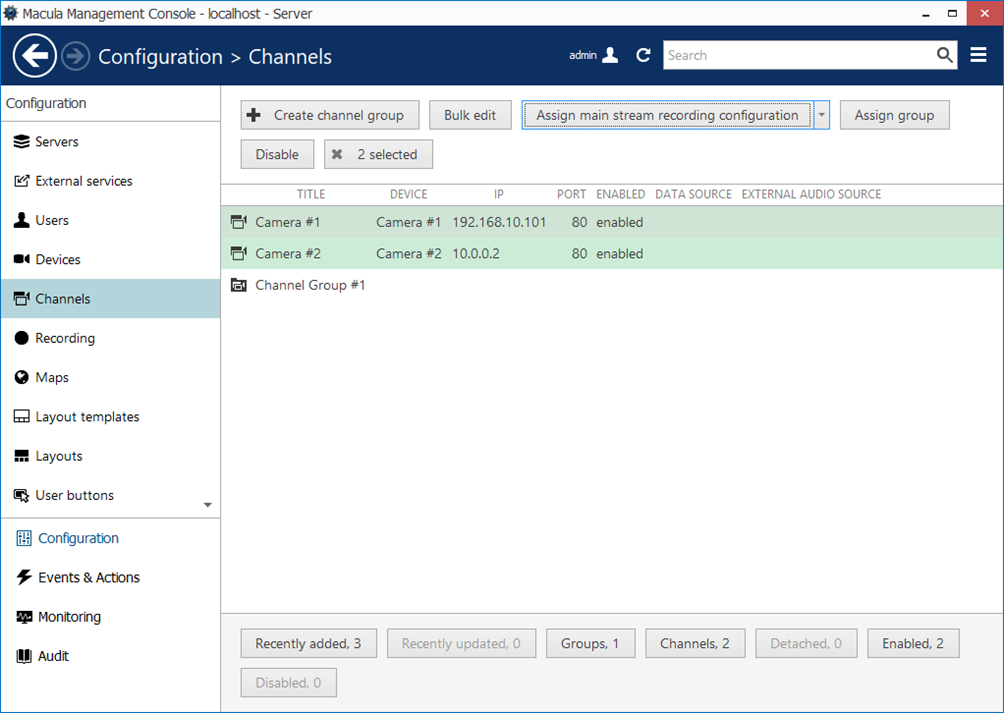
* for existing multiple channels: via *Channels* section, using *Assign main stream recording configuration* button on the upper panel
Topic body below explains how to assign configurations via main Macula Console window (latter option). All the rest alternatives are similar: you are offered configuration selection list at once from corresponding setup window.
#### Enable Recording
In Macula Console, choose *Configuration* section and select *Channels* from the menu on the left. Select one or multiple channels and/or channel groups (use *CTRL+click* or *Shift+click* to select several items at once) and then click the *Assign main stream recording configuration* button on the upper panel. The list of available configurations will appear.
Note that you can only directly assign **configurations**, not profiles or schedules. Configurations are based on profiles or schedules (sets of profiles); please refer to the *Configure Recording Profiles* section of this document for details.
Click the *+ New recording configuration* button below to create additional configurations from existing profiles/schedules at this point.
{% hint style="info" %}
When you assign a **motion-based recording configuration** to a channel with a disabled motion detector, the software will automatically suggest enabling motion detection for the target channel. The camera-side detector is given priority; if it is not available, the software-side detector will be enabled and set to the high-performance mode. We recommend that you **review** the motion detector settings to make sure it operates as desired, especially if the camera-side detector is in use.
{% endhint %}
Press *OK* to save and go back to the channel list: newly created recording configuration will be automatically assigned to channels previously selected.
#### Disable Recording
To disable recording for any channel(s), choose the *No recording* configuration, which is present in the list by default. If you have deleted it, simply create a new recording profile without any streams selected for recording and then create a recording configuration for this profile.