> For the complete documentation index, see [llms.txt](https://gsfcorp.gitbook.io/macula/llms.txt). Markdown versions of documentation pages are available by appending `.md` to page URLs; this page is available as [Markdown](https://gsfcorp.gitbook.io/macula/administration-guide-v1.33.0/activation-management.md).
# Activation Management
When a server already has a license key installed, you can retrieve that information in two ways:
* right-click server icon in the system tray and select *About*. The dialog box will contain basic information about the product version and license type
* run the *Macula Registration & Activation* from the Start menu
To start the wizard, go to *Start* -> *All Apps* -> *Macula* -> *Macula Registration & Activation* (in Windows 7 and older versions, use *Start* -> *All Programs* -> *software installation folder* -> *Tools* -> *Macula Registration & Activation*); alternatively, use Search to locate the Activation Wizard in the programs menu.
The wizard will display a summary about the currently installed license key and show the available management options.
#### Online license upgrade
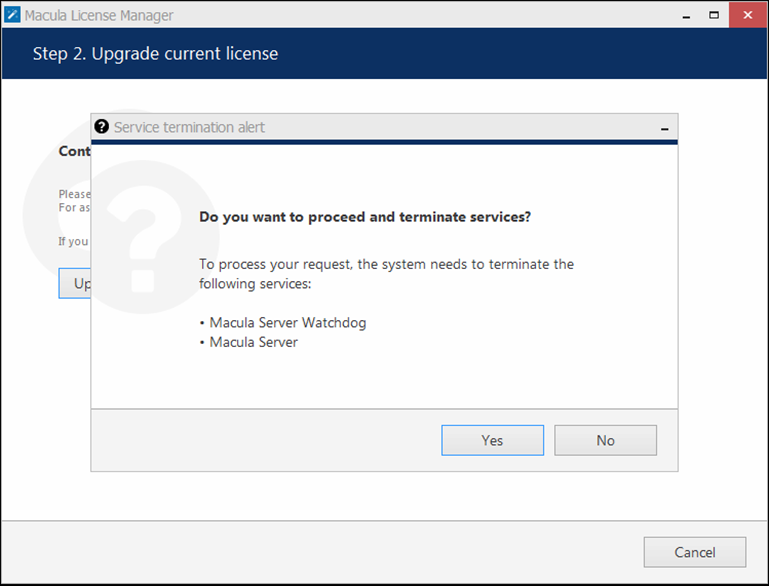
License upgrade is available for the license keys purchased earlier. Note that all the software processes (both applications and services) must be stopped in order for the license to be applied correctly.
For upgrade acquisition details and assistance, please contact .
All software processes must be stopped in order to apply license related changes
After acquiring the upgrade from GSF, click *Upgrade Existing License Key* to enter it. Your license information will be synchronized with the activation server and you will be presented a license summary. Click *Cancel* to return to the beginning of the wizard.
#### Offline license upgrade
Offline license upgrade essentially the same as the offline license activation process: the same steps should be taken to retrieve the new license file.
* generate activation file on the target server
* go to the online activation system at and fill in the form
* apply provided license file to your system
Click *Cancel* to return to the beginning of the wizard.
#### Remove license
Select *Remove License* if you wish to completely delete all the license information from the server.
Click *Deactivate Existing License* to confirm deletion of the currently installed license. Note that you will be unable to log into Macula Console to access your current server configuration without a valid license of the same type; Macula Monitor applications will also not connect to such a server. In order to use the server again, you will have to enter the license again - either the same or a new one.
Alternatively, press *Cancel* to return to the wizard start page. If you are not sure about the deactivation, consult GSF technical support.
After license deactivation, you will be offered the chance to go back to license management in order to enter a new software license.